Edit Scores and Match points

Here’s a quick guide to help you edit scores and match points.
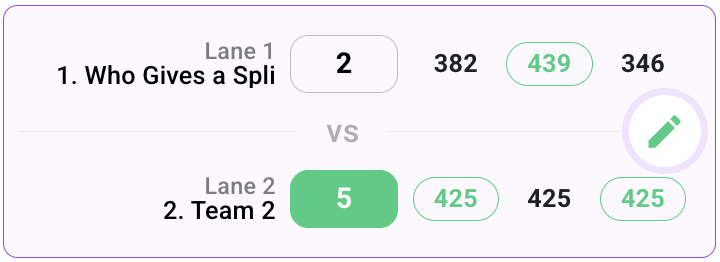
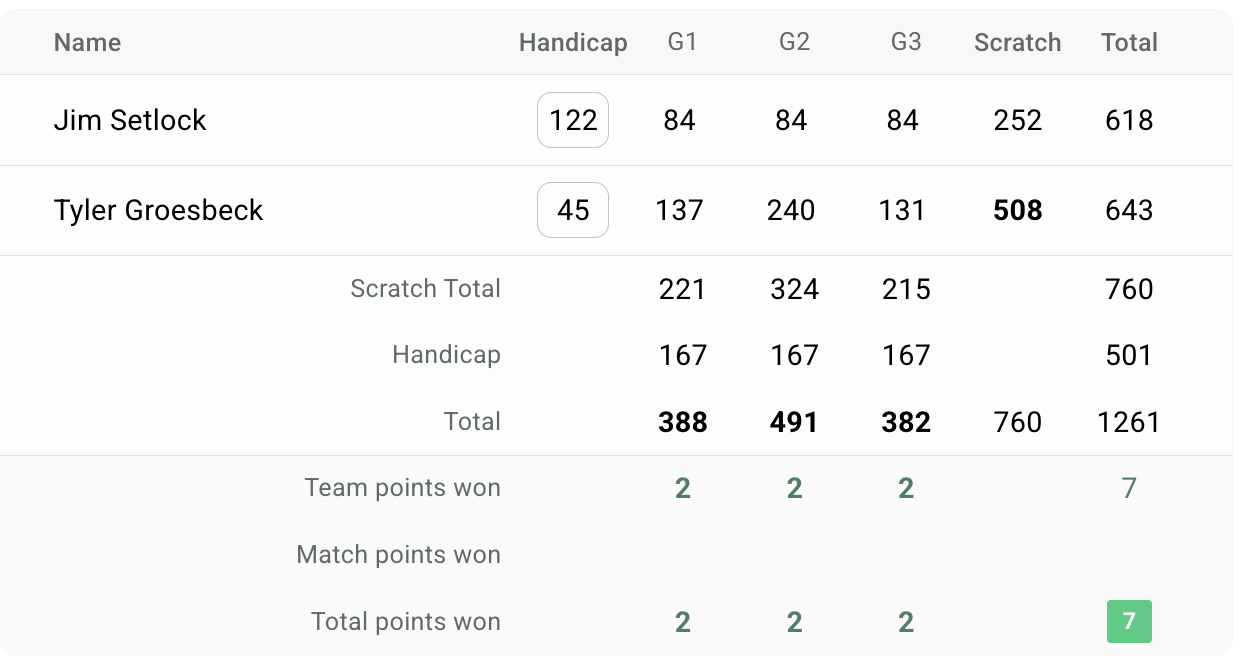
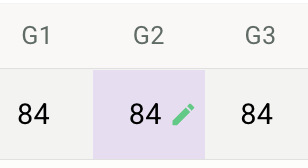
You can edit each frame individually, or enter the total score in the box on the right.
If needed, use the drop‑down menu to mark the score as Absent or Injured.
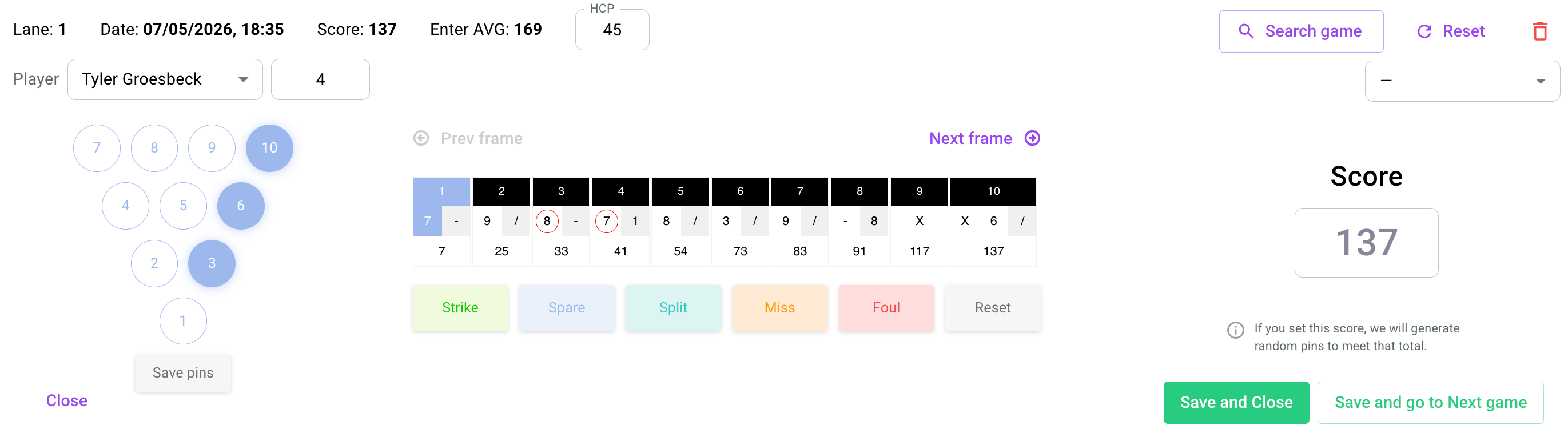
When you’re done, tap [Save and Close], or [Save and go to Next Game].
2.2.1 Add scores from the archive
Tap the [+ Add scores] to open the Search for Games window.
This gives you access to the search function, where you can adjust the pre‑set filters on top of the page to broaden the search.
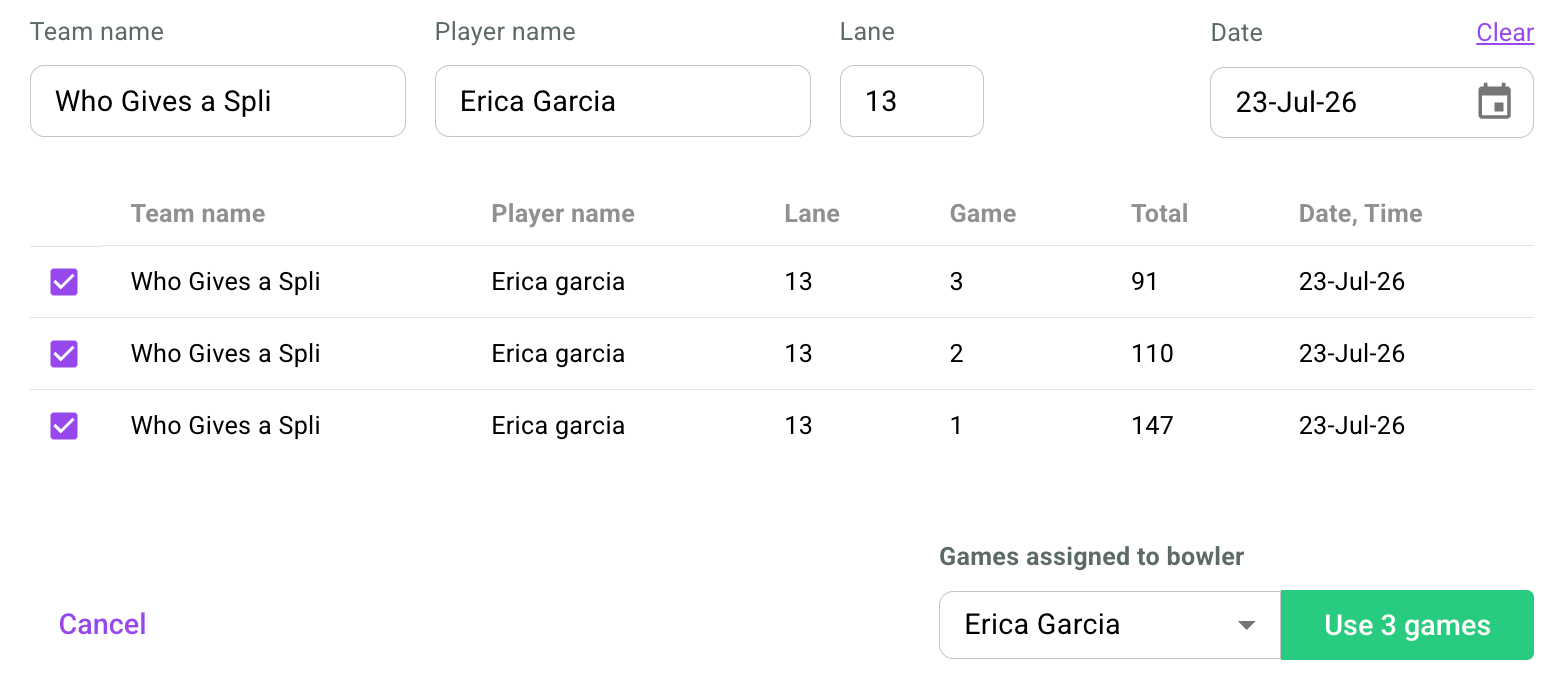
Make sure the correct bowler is selected in the drop‑down at the bottom — the imported scores will be saved under that bowler. If the bowler name is missing, select Unspecified.
Select the scores you want to import and tap [Use 3 Games] to add the games.
If you selected a player who wasn’t originally in the roster, their name will appear with a yellow background.
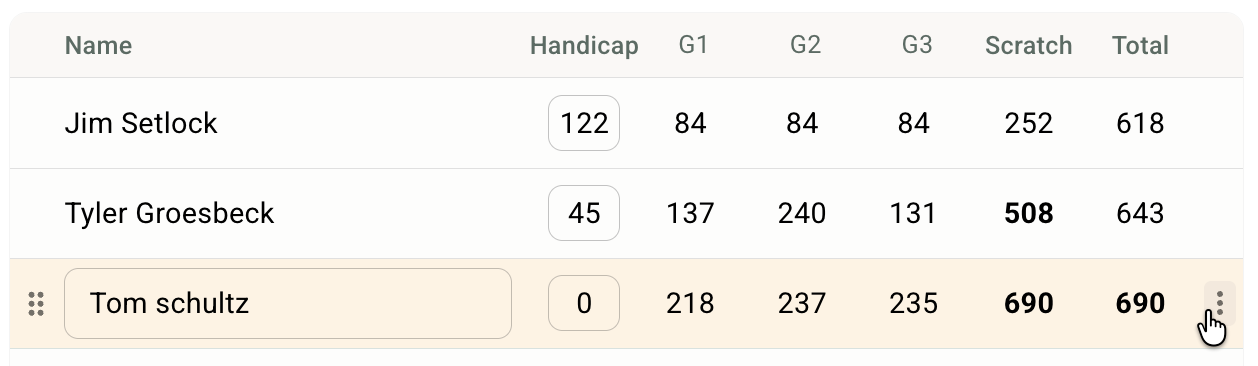
Hover over the bowler and tap the three dots to open the menu.
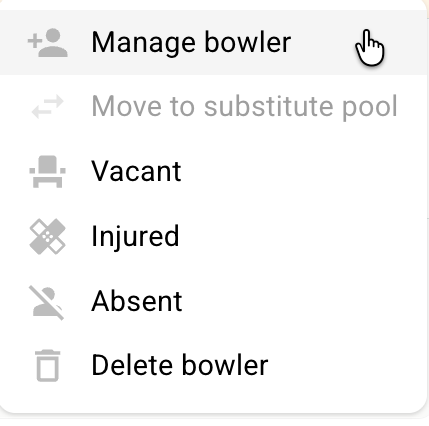
Choose Manage Bowler, then select whether to create a Team Substitute or an Ordinary Team Bowler.
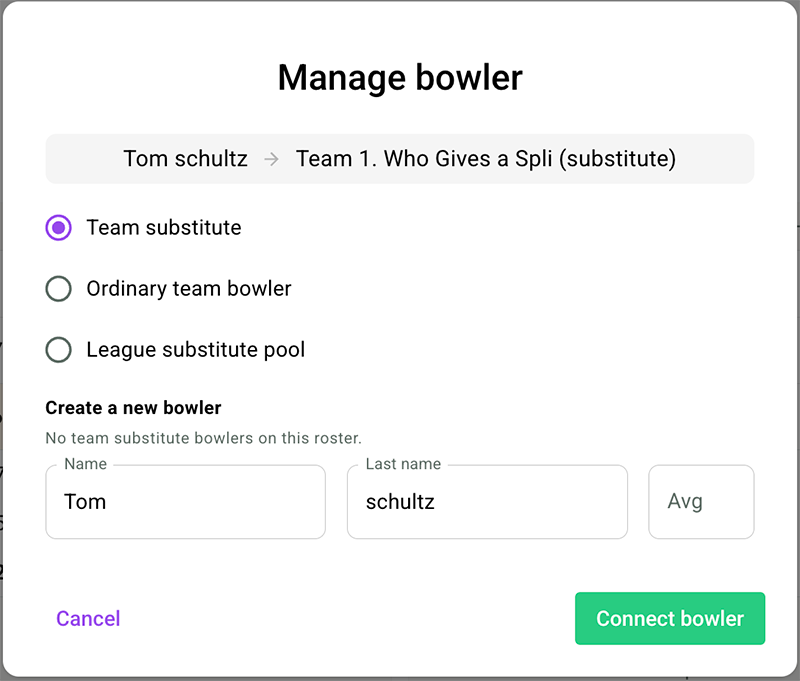
If a bowler with the same name already exists in the center’s master database, you’ll see a warning — tap Add as Team Sub if you want to connect the existing bowler profile to this team.
💡 Note: You can also use this search to find and add pre‑bowl scores.
2.2.2 Manually add scores
You can also manually add scores that aren’t available in the archive database.
Tap the [+ Add games] to open the Search for Games window.
Use the drop‑down at the bottom to select the bowler you want to add games for.
If the bowler isn’t listed, choose Unspecified.
Tap [Create Game] to add a new score.
If it’s a new bowler, enter their name in the Bowler name field.
Enter the total score and tap [Save and Close], or [Save and go to Next Game] if you want to continue adding additional games.
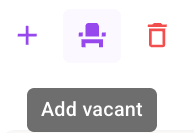
In the match edit interface, tap the vacant icon to automatically insert the vacant scores based on your rule settings. The scores will be marked as Vacant by default.
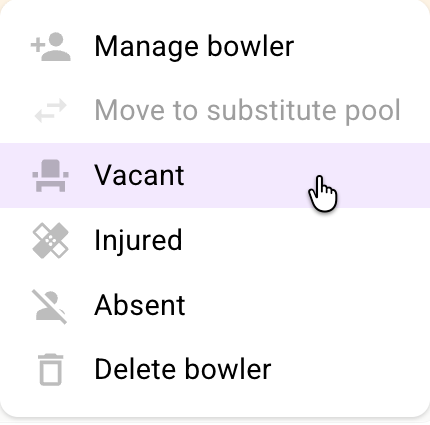
If you need to change this, open the menu via the three dots. Select Vacant score to toggle the setting on or off.
 Tutorial Video
Step‑by‑step video walkthrough