Manage Lane pairings and Teams

Managing team line ups is straightforward. In most cases, you’ve created your new season by importing last season and then making a copy. This automatically brings over your team setup and league rules.
Each week’s lane pairing follows the USBC schedule template, and players are placed in the order shown under the Teams tab for that specific week. Player position only matters if you’re using a match play format — otherwise, the order has no impact on match points.
You can adjust the player order directly by the lanes, and the platform will update the line up accordingly.
This guide explains how to change any of these standard settings if needed. Follow the step-by-step guide below or watch the tutorial video.

Next, open the Lane Assignment tab to verify or adjust the weekly lane setup.
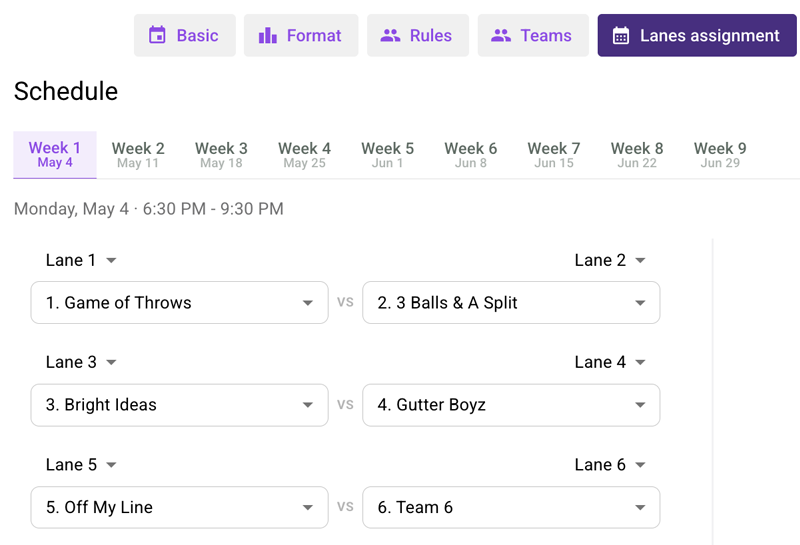
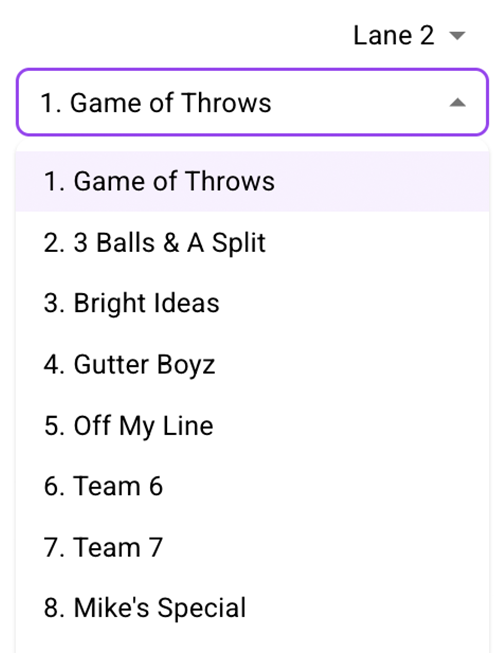
Make sure you’ve selected the correct league week. Use the lane drop down to move a team to another lane, or the team drop down to assign a different team to that lane. Save your changes when you’re done.
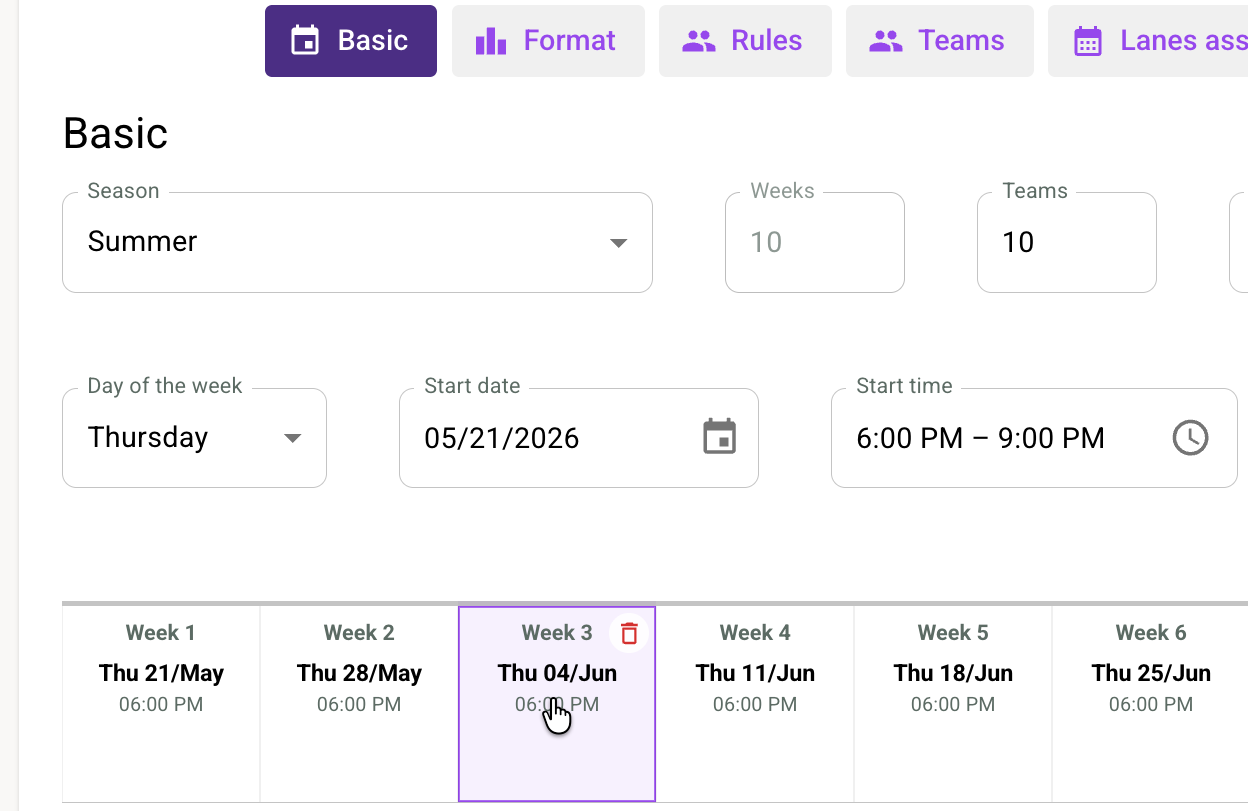
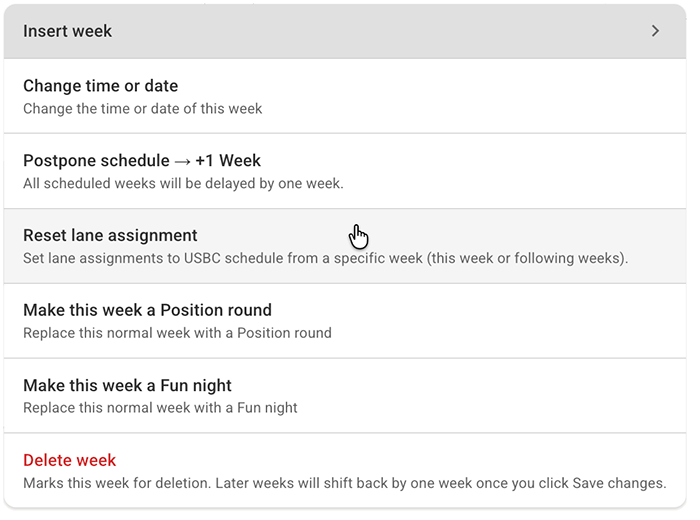
If you want to revert to the default pairing, go back to the Basic tab, tap on the desired week, and choose to reset the lane assignment according to the USBC schedule template.
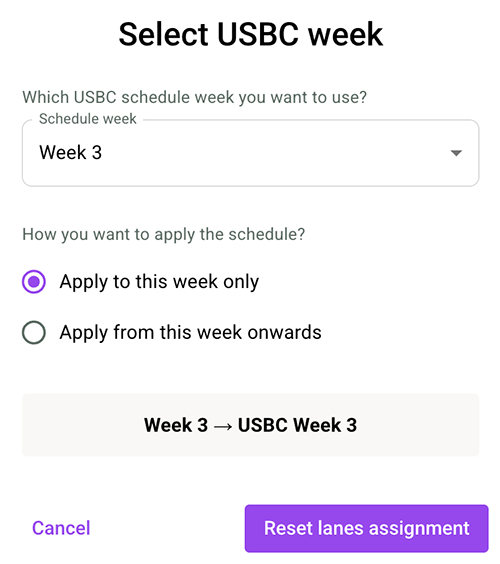
Important note: The platform listens to all lanes in the center and automatically adjusts lane assignments and match ups if a machine breaks down or similar issues occur. You don’t need to update this manually during play. However, you can change the lane assignment after the game has been played if you want to set up a different team/lane pairing than the one the platform detected. Visit the Lane Assignment tab and update the lane pairing to apply your changes. The team pairing will update instantly, and the match points will be recalculated accordingly.
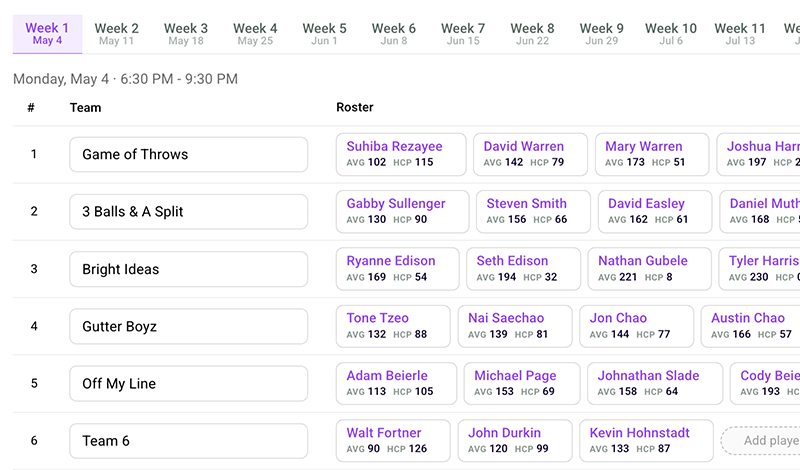
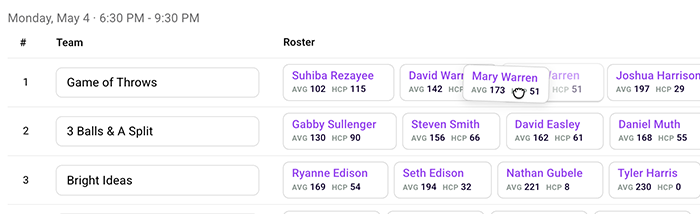
You can tap and hold a bowler’s name to move a player from substitute to ordinary team member.
Tap the Add Bowler icon to open the window for adding a new bowler to the team.
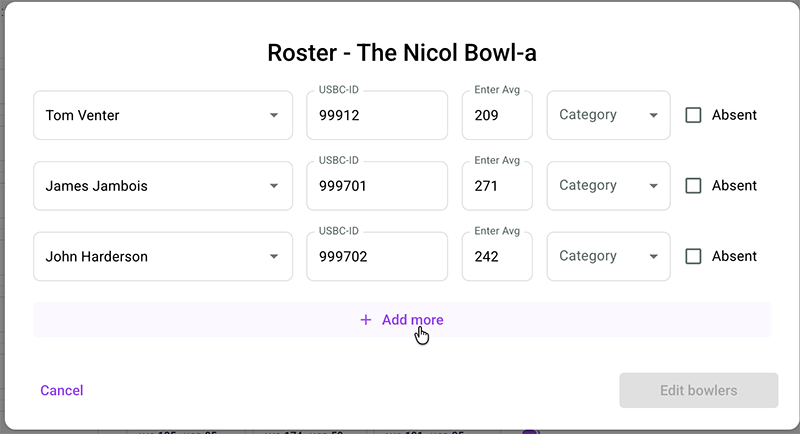

When you begin typing a name, the system automatically searches the Master Bowler List. If a match appears, select it from the drop down menu.
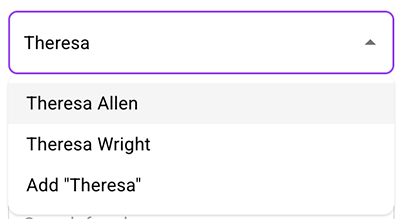
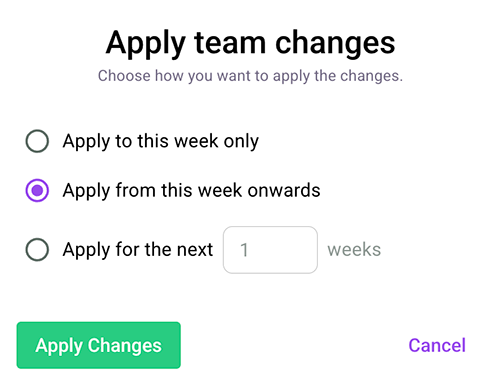
When you’re done, tap Save and choose whether you want the changes to apply only for the current week or from this week and onward.
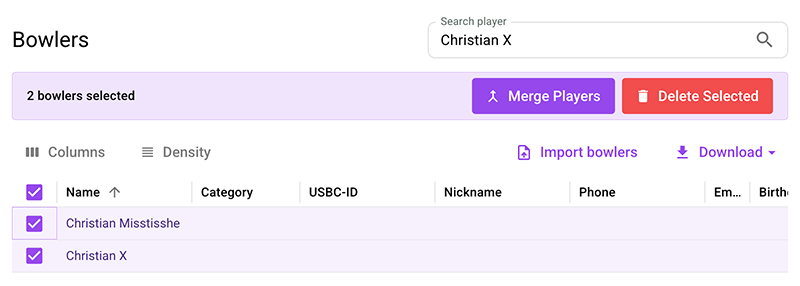
Enter the player’s name and the system will display all similar matches. Mark the check boxes next to the bowlers you want to merge, then select Merge players.
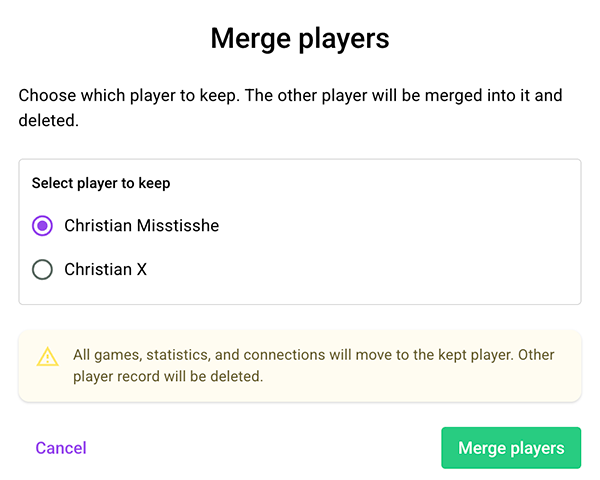
On the next screen, choose which player profile to keep. The other profile — including its scores — will be merged into the selected player. Once merged, the duplicate profile will be deleted. The update will apply across all leagues where this player is registered.
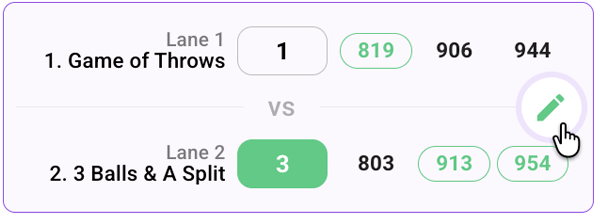
Go to the Weekly Standings tab and scroll down to the matches. Hover over the match you want to edit and tap the green pen icon to open the match edit interface.
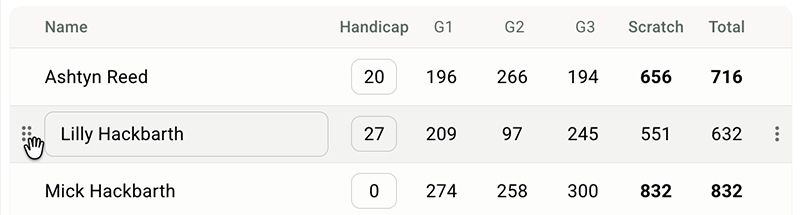
Hover over a player’s name and a six dot handle will appear. Tap and hold to drag the player to a new position. (Player position only affects scoring in match play formats.)
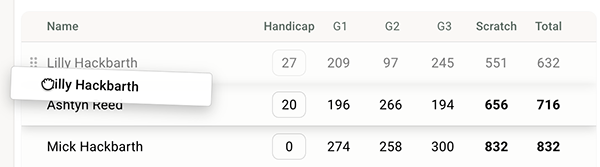
If a new bowler participated in the match, they must be added to the team as either an ordinary player or a substitute. This ensures that their average and handicap can be calculated correctly for upcoming weeks.
A yellow background indicates that League Manager cannot match the name to an existing player. If the bowler already exists in the team roster, simply tap on the name to use the drop down to connect the scores to the correct player.
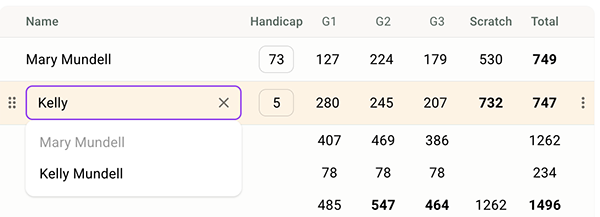
If the bowler has not been added to the roster before, you can add them directly from the match edit interface:
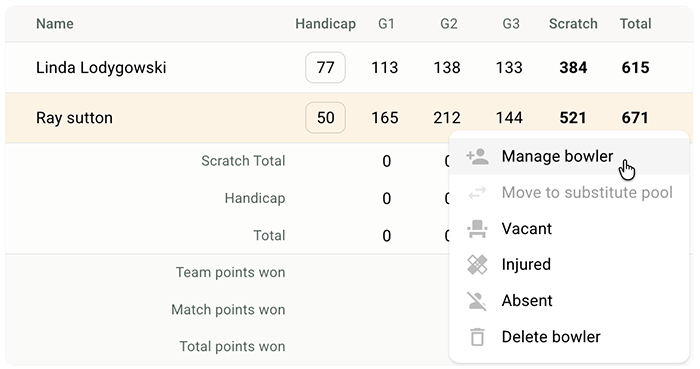
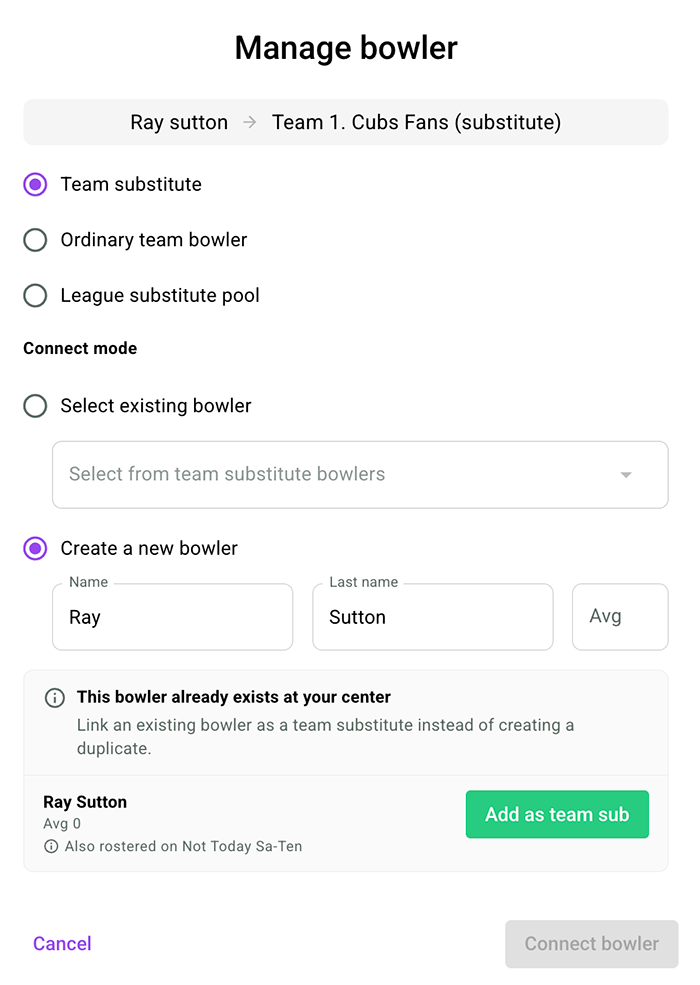
If the same bowler already exists in the league (for another team), you will be asked whether you want to connect the profiles. Select Add as team sub if you like to connect it to the same profile and add the bowler as a sub in this team (recommended).
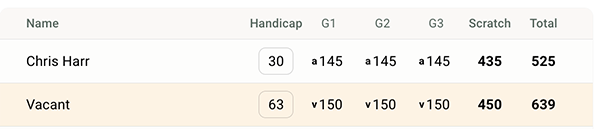
Absent scores are automatically applied when all player scores are identical, which indicates an absent round. You’ll see an “a” added before the score to indicate it (for example, a145).

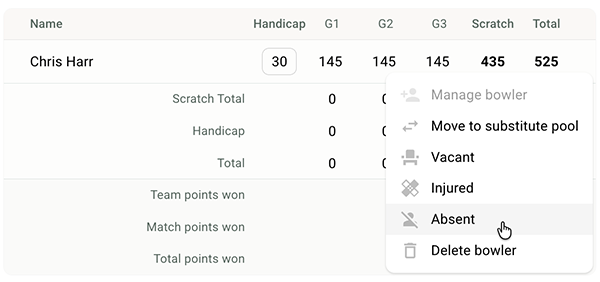
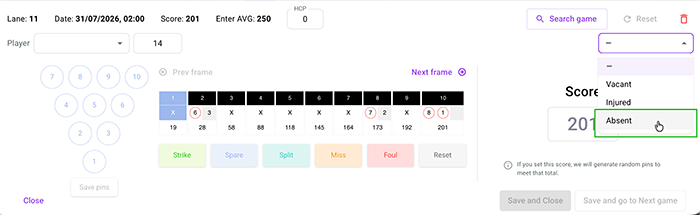
You can also mark absent scores manually. Tap the three dot menu and select Absent or Injured to mark all games for that player as absent or injured.
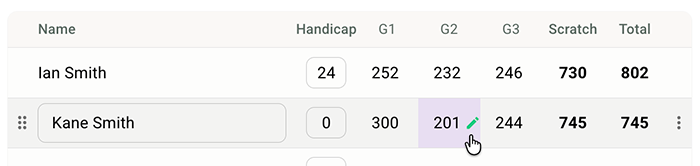
Hover over a specific score, tap the edit pen icon, and update only that individual game. You can change the score or set that single game to Absent or Injured, then Save.
The platform automatically adds vacant scores when the imported lane data does not include enough players to meet the legal line up. If you want to add vacant scores manually, tap Add vacant. The system will apply the vacant score defined in your league rules.

After tapping the add vacant score, it will be displayed like this (with a “v” in the front):
 Tutorial Video
Step‑by‑step video walkthrough