Import teams, bowlers and historical scores

This guide will help you import teams, bowlers, and their historical scores. It’s the fastest way to jump‑start your upcoming season. Simply import data from the last season and use it as a template to build the new one.
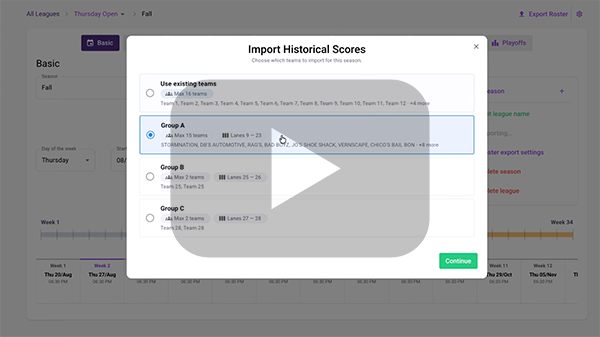
Follow the below step-by-step guide or watch the video:
⚠️ Before you start
Note 1: Add position rounds and Fun nights before you import the scores (to make sure that the lane assignment/pairing for each week will be correct).
Note 2: The import tool will only work if the number of teams set up in the Basic tab can be found and that the roster setup on the lanes is set up as a group, not as individual reservations (such as separate open play lanes). If this occurs, you will need to enter all team and bowler names manually. Then go back to the tool and it will be able to import the scores based on the team names and bowler names that you have manually added.
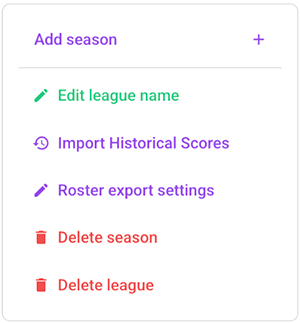
It will search the archive to find games from your center that were played on the first league date at the scheduled start time. It will then present a list with possible matches.
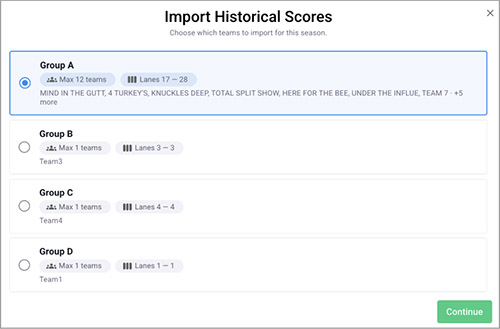
Select the matching group and tap [Continue].
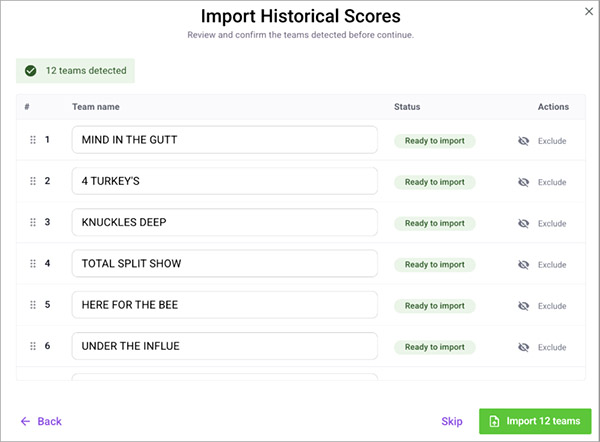
Tap on [Import XX teams] to import the teams and the team bowlers to your league (and Master Bowler list).
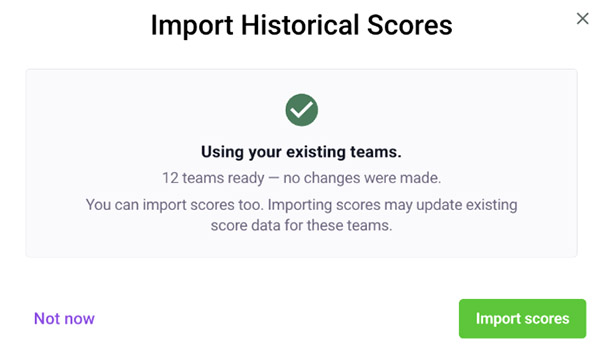
Tap on [Import scores] to import the scores for each historic week.
You can verify the import by visiting the Teams tab to see the imported teams and the bowlers. Tap on the Weekly Standings tab to see all imported games for each week. Verify that each week is imported.